The Insert Token button on the Create panel makes it easy to insert the following regular expression tokens to match Unicode characters. See the Insert Token help topic for more details on how to build up a regular expression via this menu.
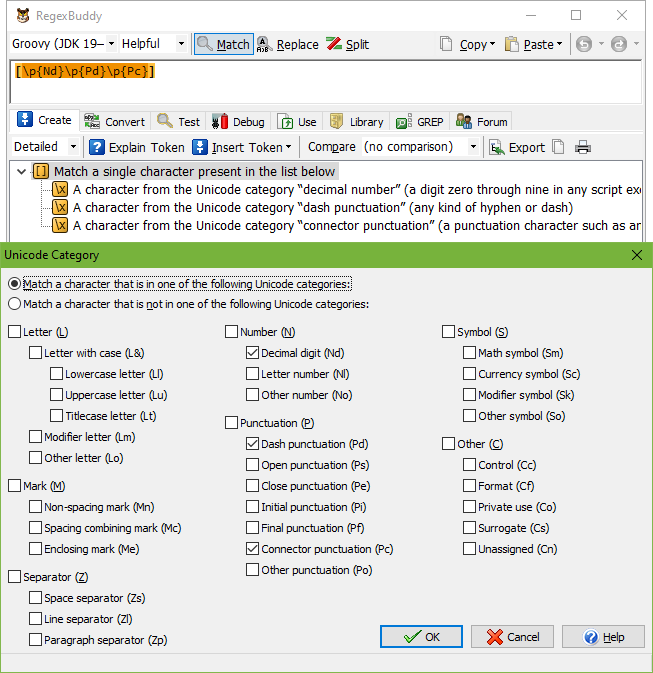
The Unicode standard places each character into exactly one category. Insert a regular expression token to match a Unicode category if you want to match any character from a particular Unicode category. This makes it easy to match any letter, any digit, etc. regardless of language, script or text encoding.
In the window that appears, select one or more categories that the character you want to match should belong to. If you select more than one category, RegexBuddy will combine the Unicode category regex tokens into a character class to match any character belonging to any of the categories you selected.
The Unicode standard places each assigned code point (character) into one script. A script is a group of code points used by a particular human writing system. Insert a regular expression token to match a Unicode script if you want to match any character from a particular Unicode script. This makes it easy to match any character from a certain writing system. Note that a writing system is not the same as a language. Some writing systems like Latin span multiple languages, while some languages like Japanese have multiple scripts.
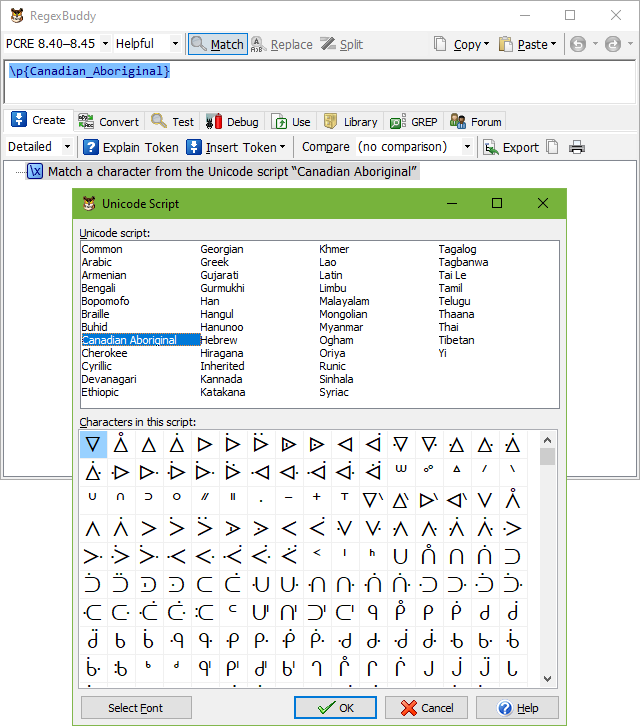
In the window that appears, select the script that you’re interested in. RegexBuddy will insert a regex token that matches any single character from the script.
The window will show a preview of the characters in the script. If you move the mouse over the grid, you can see the hexadecimal and decimal representations of each character’s code point occupies in the Unicode standard. If you see a great number of squares instead of characters in the grid, click the Select Font button to change the grid’s font. The squares indicate the font cannot display the character. The last row of the grid may have squares that are crossed out with thin gray lines. This simply indicates the script doesn’t have any more characters to fill up the last row.
The Unicode standard divides the Unicode character map into different blocks or ranges of code points. Characters with similar purposes are grouped together in Unicode blocks. The arrangement is not 100% strict. Some characters are placed in what seems the wrong block, mostly for historic reasons (i.e. compatibility with legacy character encodings). Though some blocks have the same names as scripts, they don’t necessarily include the same characters. If you want to match characters based on their meaning to human readers, use Unicode scripts. If you want to match characters based on their Unicode code points, use Unicode blocks.
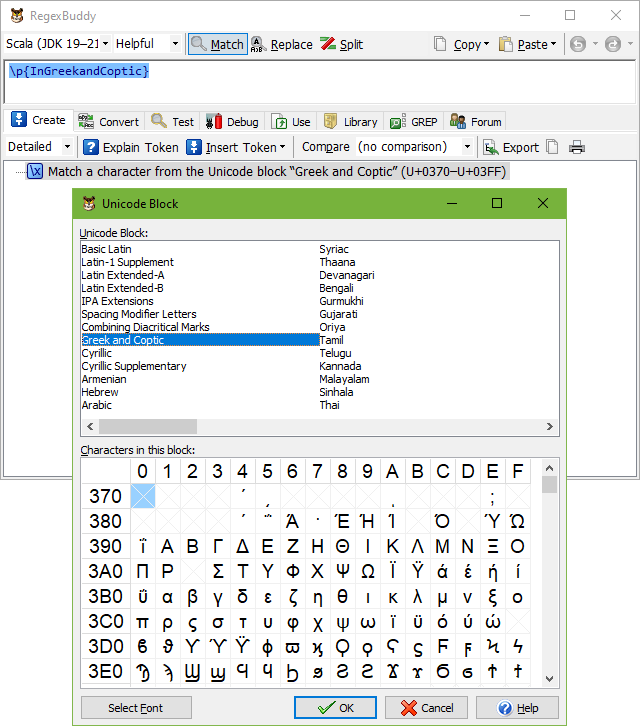
In the window that appears, select the block that you’re interested in. RegexBuddy will insert a regex token that matches any single character from the block.
The window will show a preview of the characters in the block. If you move the mouse over the grid, you can see the hexadecimal and decimal representations of each character’s code point occupies in the Unicode standard. If you see a great number of squares instead of characters in the grid, click the Select Font button to change the grid’s font. The squares indicate the font cannot display the character. The grid may have squares that are crossed out with thin gray lines. That means that the Unicode standard does not assign any characters to those code points. The regex token to match a Unicode block will match any code point in the block, whether a character is assigned to it or not.
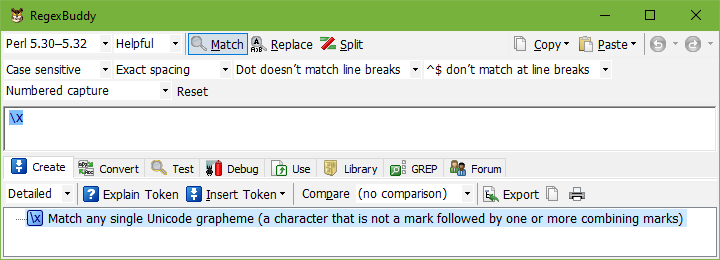
Insert \X or equivalent syntax to match any Unicode grapheme.
Matches a specific Unicode character or Unicode code point. Use this to insert characters that you cannot type on your keyboard when working with an application or programming language that supports Unicode.
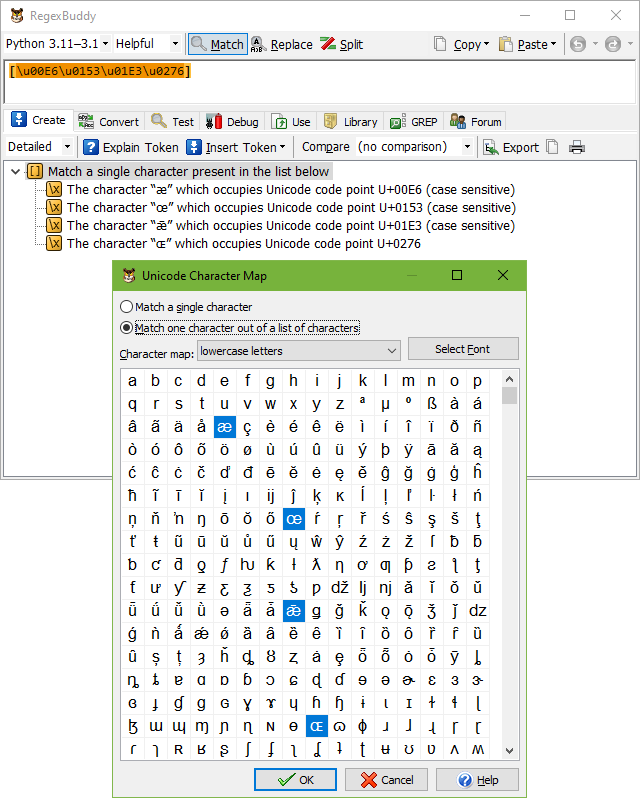
In the screen that appears, RegexBuddy shows a grid with all available Unicode characters. Since the Unicode character set is very large, this can be a bit unwieldy. If you know what Unicode category the character you want belongs to, select it from the drop-down list at the top to see only characters of that category. If you move the mouse over the grid, you can see the hexadecimal and decimal representations of each character’s code point in the Unicode standard.
If you see a great number of squares instead of characters in the grid, click the Select Font button to change the grid’s font. The squares indicate the font cannot display the character. With the “all code points” character map option selected, certain squares will be crossed out with thin gray lines. These squares indicate unassigned Unicode code points. These are reserved by the Unicode standard for future expansion. With any other character map option selected, the last row of the grid may have squares that are crossed out with thin gray lines. This simply indicates the selected category doesn’t have any more characters to fill up the last row.
Above the grid, choose whether you want to match only one particular character, or if you want to match one character from a number of possible characters. If you select to match one character, click on the character in the grid and then click OK. Otherwise, clicking on a character in the grid will toggle its selection state. Select the characters you want, and click OK.
RegexBuddy inserts a single Unicode character escape in the form of \uFFFF or \x{FFFF} into your regular expression to match the character you selected. If you select multiple characters, RegexBuddy puts the Unicode escapes for them in a character class. If your regex flavor does not support Unicode escapes, RegexBuddy inserts the characters literally.