Exactly what your regular expression does depends a lot on the application or programming language you’ll use it in. A regular expression that works perfectly in one application may find different matches or not work at all in another application. You should never paste a regex that you’ve found on the Internet into your own code and hope that it’ll all work.
Instead, paste the regular expression into RegexBuddy. If the regex was formatted as a string in source code, paste with the correct string style. Select the application or programming language that the regular expression was originally intended for in the toolbar at the top. This way, you can be sure that RegexBuddy is interpreting the regular expression as it was intended and (hopefully) tested by its original creator.
Now you can easily convert the regular expression to the application or programming language you want to use it with. On the Convert panel, select your target application in the drop-down list with the mouse or by pressing Alt+V on the keyboard. Your favorite applications are shown directly in the list. Choose “More applications and languages” in the list or press Ctrl+F4 to select another application or to change which applications are your favorites. The conversion is instant and fully automatic. The converted regex is updated continuously if you edit the original regex. In Replace mode, both the regular expression and replacement text are converted.
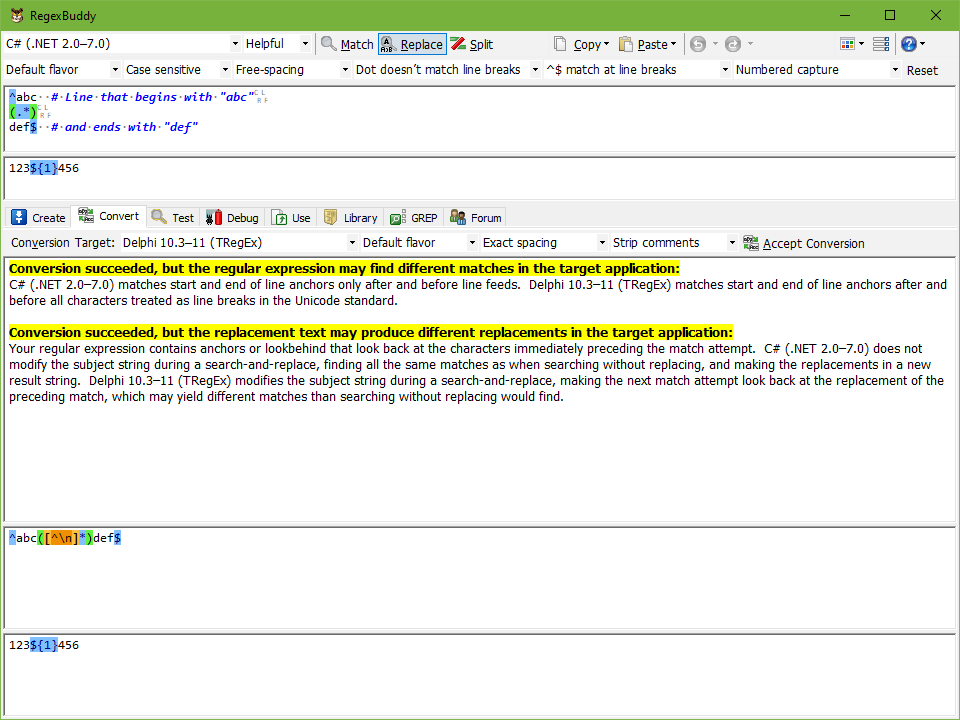
RegexBuddy is very strict when converting regular expressions. You can see this in the screen shot. Both .NET and Delphi support the dot to match any character except line breaks. But the .NET Regex class only treats \n as a line break, while Delphi’s TRegex class recognizes all Unicode line breaks. So RegexBuddy converts the dot into a negated character class [^\n] that does exactly the same thing in Delphi as . does in C#.
But RegexBuddy can’t always use alternative syntax to preserve the exact behavior of the regex. Both .NET’s Regex class and Delphi’s TRegex class use ^ and $ to match at the start and the end of a line. But again the interpretation of what constitutes a line is different. In this case, the converted regex uses the same syntax, and RegexBuddy warns that the behavior of the regex may be different. Whether it will be different depends on the strings or files you’ll be using this regex on. If they don’t contain any line break characters other than \n, then you can ignore the warning.
The top half of the Convert panel shows all the warnings and errors, if any. The bottom half shows the converted regex. In Replace mode, the bottom half is split into two once more to show both the converted regex and replacement.
To use the converted regular expression and replacement text, click the Accept Conversion button or press Alt+A. This replaces the original regex with the converted regex. If you want to keep the original regex, first click the green plus button on the History panel to duplicate the original regex, and then click Accept Convert to replace the duplicate regex with the converted regex. Either way, the Convert panel becomes empty to give you extra visual confirmation that you accepted the conversion. As soon as you edit the regex
You should always use the Accept Conversion button. Do not copy and paste the converted regex or replacement directly into your target application. First of all, accepting the conversion allows you to use the Copy button or the Use panel to correctly format the regular expression for pasting into your source code. But more importantly, the regular expression conversion also handles the regular expression options. The target application may require different options to be set. These options aren’t shown on the Convert panel. But the Accept Conversion button does change the regex options on the top toolbar as needed.
For example, converting the same regex shown in the screen shot from C# to Java will say “conversion succeeded” without any warnings or any changes to the regex. But the converted regex will only do the same thing in Java as it did in C# when setting the UNIX_LINES option in Java. If you click Accept Conversion, then RegexBuddy automatically selects “LF only” in the drop-down list for the line break handling regex option. Then the Use panel will automatically add UNIX_LINES to the Java snippets it generates.
If the target application supports both free-spacing and exact spacing modes, then you can choose which mode the converted regular expression should use. Converting a free-spacing regex to exact spacing will strip all insignificant whitespace and line breaks from the regex. Converting a regex from exact spacing to free-spacing escapes all literal whitespace and line breaks in the regex, so they will be seen as significant in the converted regex. RegexBuddy will not automatically add whitespace to beautify your regex. You can do that yourself after clicking Accept Conversion. If the target application supports only either mode, then RegexBuddy automatically converts your regex to that mode.
If the target application allows comments to be added to the regex, then you can choose whether to keep comments in the converted regex or strip comments from the converted regex. Some applications only support comments in free-spacing mode, so that choice affects whether the option to keep comments appears. If the target application does not support comments, RegexBuddy strips comments without warning. If your original regex doesn’t have any comments, then this option has no effect.
You can select the same application in the application drop-down list at the top and on the Convert panel. One reason to do this is to change the spacing mode of a regex. If you’ve stored a nicely formatted and commented regex in your RegexBuddy library but your application only provides a tiny one-line input box for the regex, then you can make your regex usable by converting it to exact spacing and stripping comments. Or, if you’ve inherited some source code with obtuse regular expressions, you can make those more readable by first converting them to free-spacing mode, and then adding whitespace and comments as you like.
Another reason is to automatically deal with unsupported syntax. For example, \x{20AC} is a syntax error in C#. But RegexBuddy is smart enough to guess that you’ve been trying to use the Perl syntax to match the Unicode code point for the euro symbol. When converting this regex from C# to Ce, the Convert panel says “conversion succeeded” and gives you \uFFFF as a fully functional regex that does what you intended.
The Convert panel is a powerful tool. But sometimes you may want more control. To manually convert a regular expression, switch to the Create panel. Select both the original application and the target application as the two flavors to compare your regular expression between. The comparison indicates all differences between the two applications that apply to your regex. You can then edit your regex by hand to work around those differences, or decide that certain differences can be ignored because they don’t apply to the strings or files you’ll be using the regex on.